Installing Julia on Windows
The instructions below apply only to Windows. On Linux and macOS, install Julia using Juliaup by running:
curl -fsSL https://install.julialang.org | shThis will install the latest stable version of Julia, as well as the juliaup tool. Start Julia from the command-line by typing julia. See juliaup --help for how to configure installed versions.
Windows: Why not use Juliaup?
The officially recommended method for installing Julia is through Juliaup. However, in practice we advise against it for several reasons:
- Wasted disk space: Juliaup installs Julia inside
%LOCALAPPDATA%\juliaup, a hidden directory that consumes roughly 700 MB more than a plain installer-based setup. - Serious bugs: At the time of this writting, Juliaup can breaks the functioning of GMT.jl Ghostscript does not work properly, and file permissions error to write on TMP occurs in some cases.
- Unnecessary complexity: Most users only need a single Julia version properly installed and accessible from the PATH.
- Upon uninstallation: Multi GiggaBytes of disk space are left behind under the unnoticed
...\.julia\juliaupdirectory, which is not removed by the uninstaller.
The recommended approach is to download the official installer directly.
Download the installer
Go to the manual downloads page: https://julialang.org/downloads/manual-downloads/
Under the Windows section, download the installer (.exe) for your architecture (in the vast majority of cases, 64-bit). You currently likely want the Long-term Support release, which is 1.10 at the time of this writting (not the latests, but it is smaller and faster).
Run the installer
Double-click the downloaded .exe file. The installer will guide you through a few simple steps.
Choose the installation directory
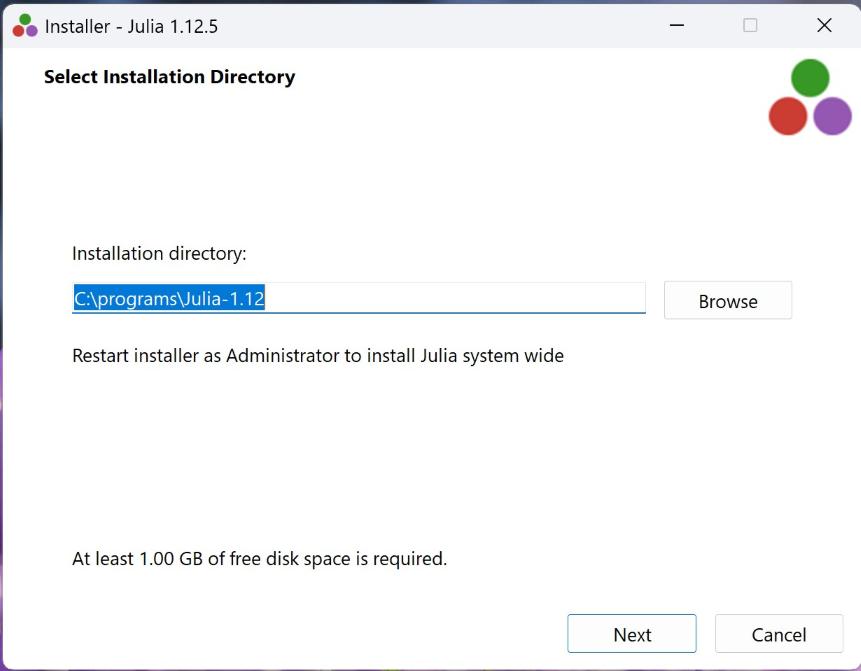
It is recommended to install Julia in a directory that is not hidden and is easy to access. Do not use the default %LOCALAPPDATA% path (which is a hidden Windows directory). Instead, choose a simple path such as C:\programs\Julia-1.10 (when installing the 1.10 version, of course).
On the Select Installation Directory screen, change the path to a visible directory, for example C:\programs\Julia-1.10:
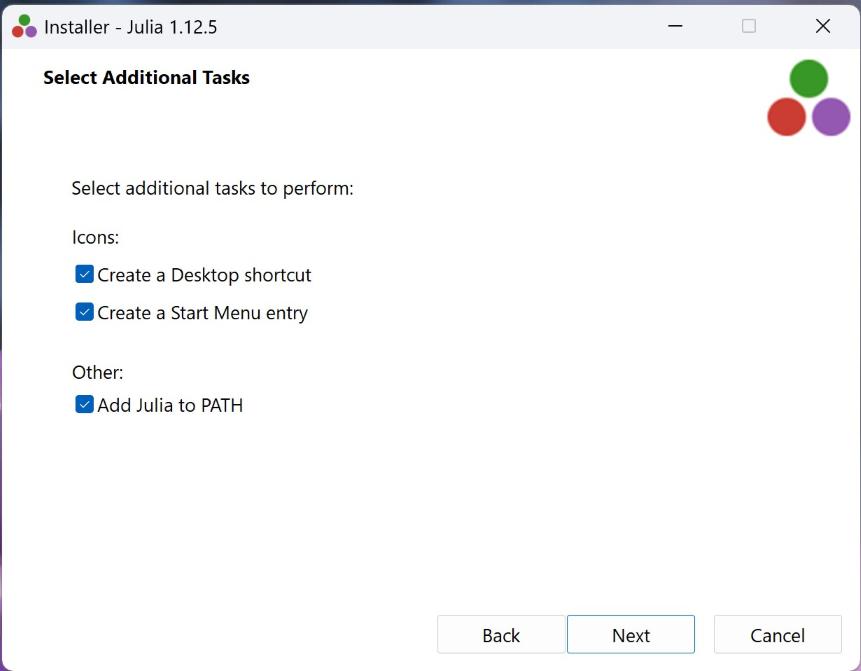
Add Julia to PATH
Make sure the “Add Julia to PATH” checkbox is checked. This allows you to run julia from any terminal without having to type the full path to the executable.
Verify the installation
After the installation completes, click on the Julia icon shortcut you have now on your screen and run:
julia --versionYou should see something like:
julia version 1.10.11